
1. What is ArtCloud Crypto Pay
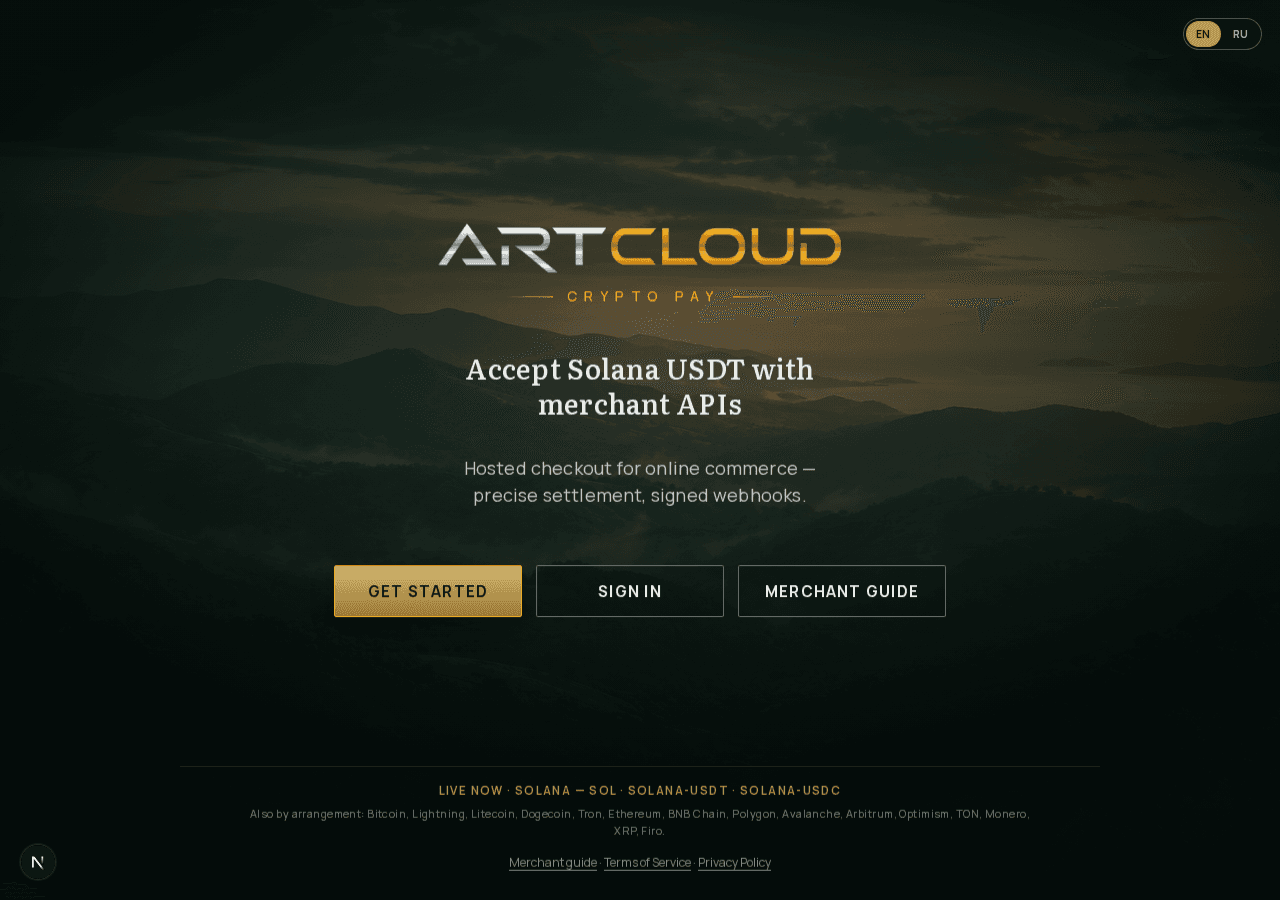
ArtCloud Crypto Pay is a hosted payment platform for online merchants. You create a payment request through the API (application programming interface), send the buyer to our checkout page, and receive a signed server notification when funds arrive.
On production today we support Solana only: native SOL, USDT (SOLANA-USDT), and USDC (SOLANA-USDC). Other networks are available only by separate agreement with the operator.
- Hosted checkout — no need to build a wallet UI yourself
- Merchant dashboard — invoices, balances, withdrawals
- Signed server notifications (HMAC) for reliable order fulfillment
2. Registration
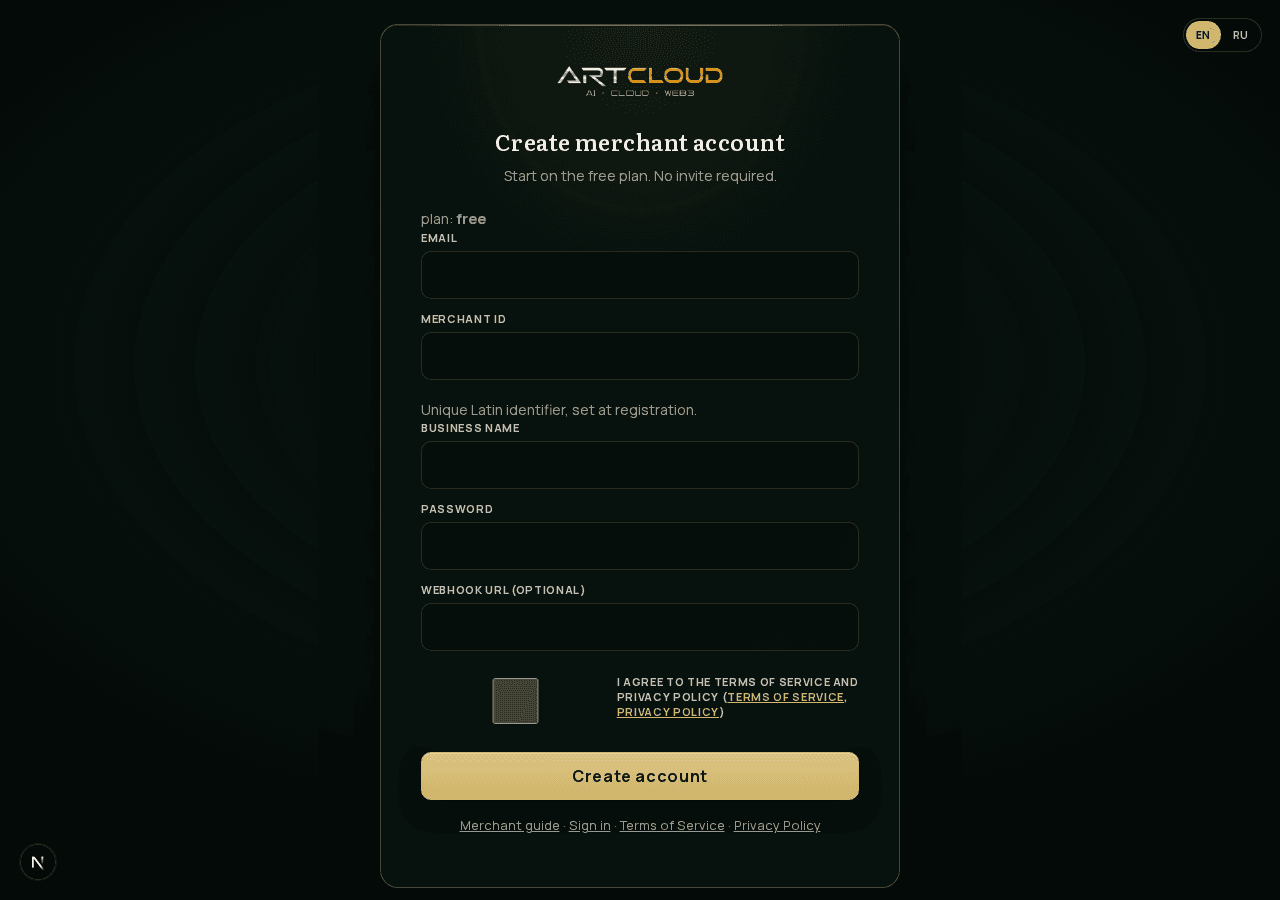
Open the registration page and fill in email, display name, password, and Merchant ID. Merchant ID is a unique Latin identifier for your store (API field slug) — choose it once; it cannot be changed later.
- Go to /cabinet/register (or click «Get started» on the landing page)
- Enter Merchant ID — e.g. myshop (letters, digits, hyphens)
- Accept the Terms of Service and Privacy Policy — required
- Optional: webhook URL during signup; you can set it later in Settings
After registration you get the free plan and can sign in to the merchant dashboard immediately.
3. Sign in
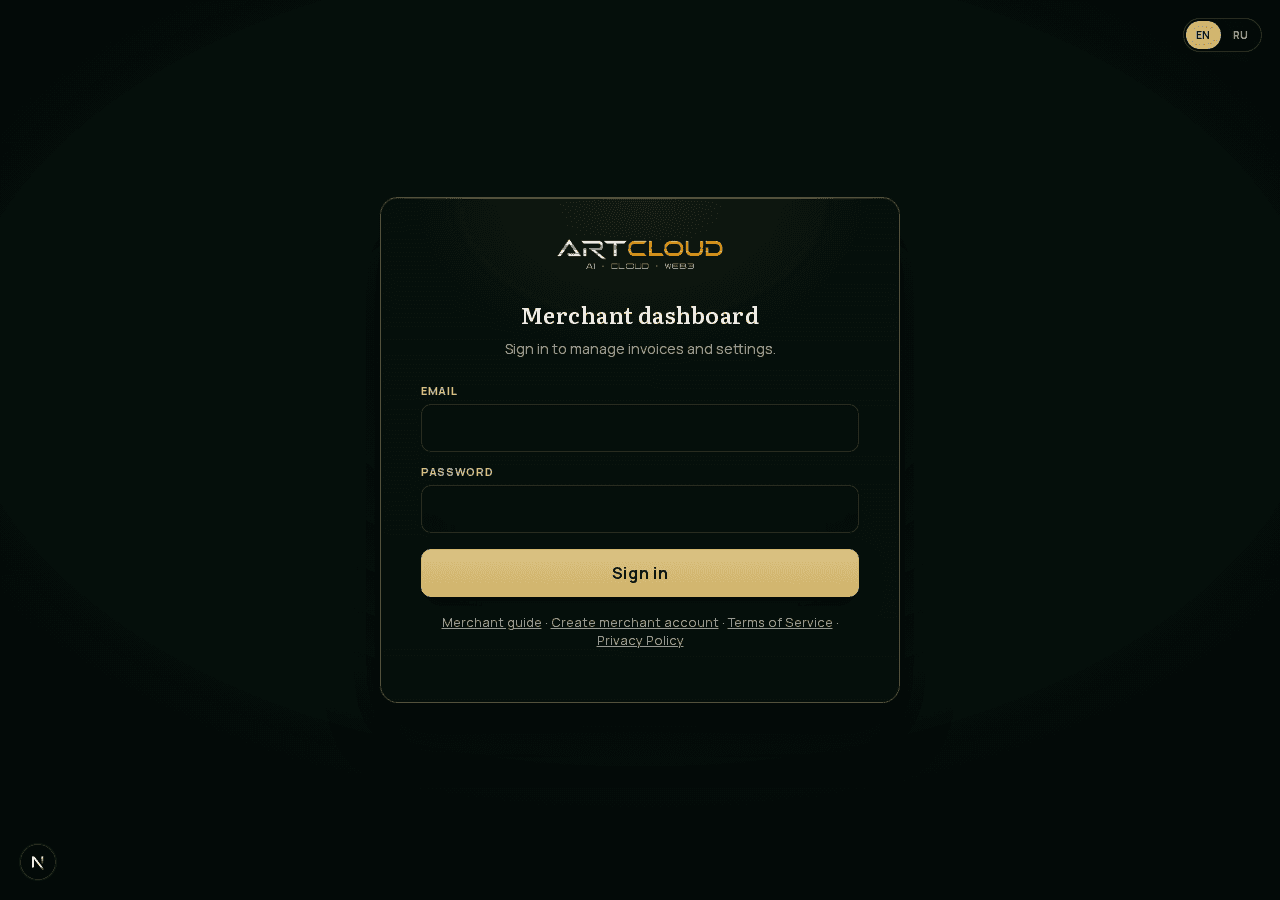
Open /cabinet (or /cabinet/login — same page). Enter the email and password from registration. After sign-in you land on Overview.
4. Merchant dashboard overview
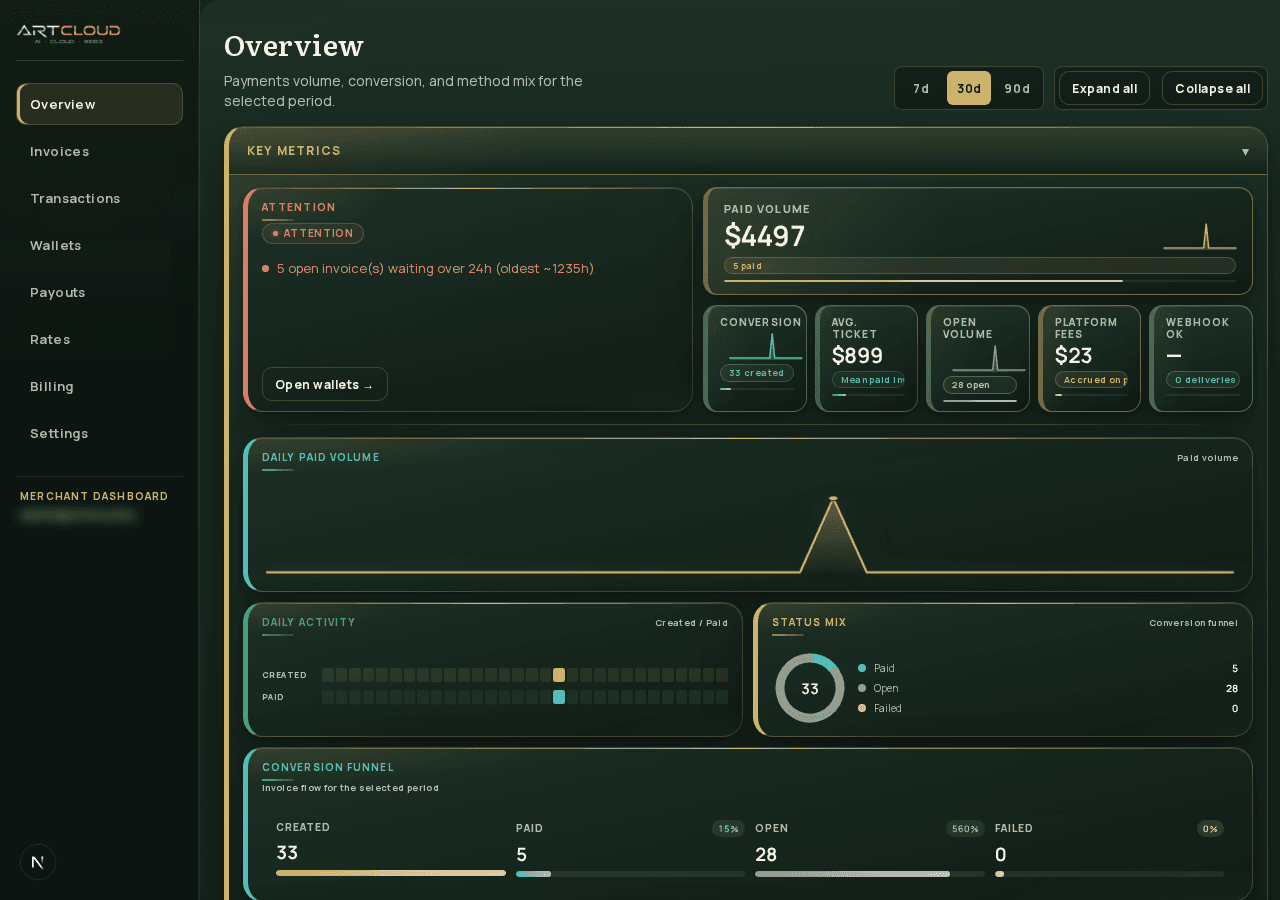
The dashboard is at /cabinet. After login the sidebar shows: Overview, Invoices, Transactions, Wallets, Payouts, Rates, Billing, Settings.
- Overview — volume, conversion, alerts (low fee deposit, open invoices)
- Invoices — list and manual invoice creation
- Transactions — paid and partially paid payments
- Wallets — SOL / USDT / USDC balances and fee deposit (SOL for gas)
- Payouts — manual withdrawals and history
- Rates — fiat/crypto reference rates
- Billing — SaaS plan and platform invoices
- Settings — API keys, webhook URL, password
5. Settings: API key and notifications
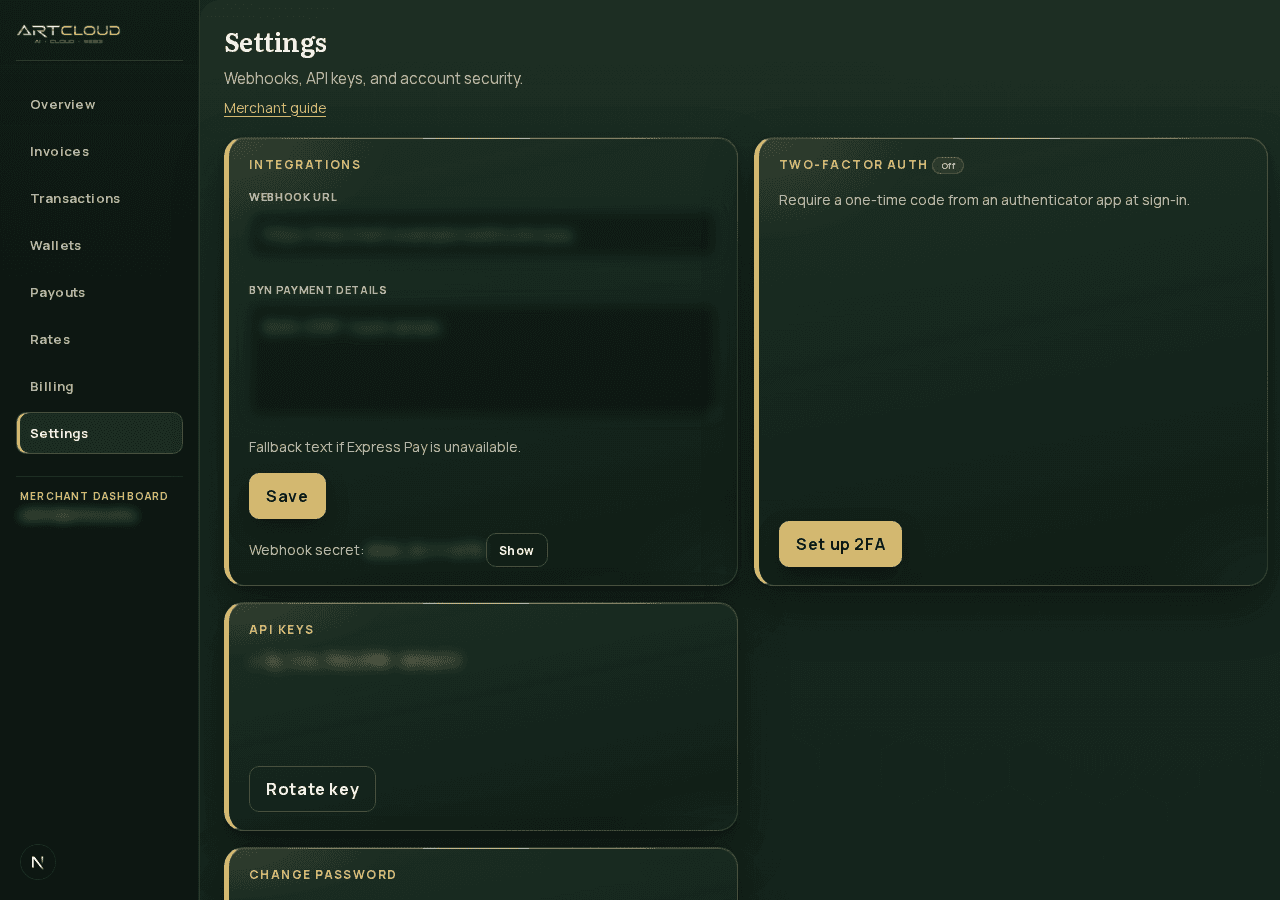
Open Settings in the sidebar. Here you configure integration credentials and the default notification URL.
- API key — new keys start with ac_live_ (legacy bp_live_ keys remain valid). Use header X-Artcloud-Api-Key (current) or legacy X-Braiora-Api-Key / X-Shkeeper-Api-Key — all accepted. When you rotate the key, the full value is shown once — save it immediately.
- Webhook URL — default address for server notifications (callback). Can be overridden per invoice via callback_url in the API request.
- Webhook secret — used to verify HMAC signature on incoming notifications. Shown in Settings after save.
6. Create a payment via API
Two equivalent ways exist: compatibility endpoint (SHKeeper-shaped) and modern POST /v1/invoices. Base URL on production: https://pay.braiora.com
Compatibility (recommended for existing integrations):
API=https://pay.braiora.com
KEY=ac_live_YOUR_KEY   # legacy bp_live_ keys also work

curl -sS -X POST "$API/api/v1/SOLANA-USDT/payment_request" \
  -H "Content-Type: application/json" \
  -H "X-Artcloud-Api-Key: $KEY" \ # legacy: X-Braiora-Api-Key / X-Shkeeper-Api-Key
  -d '{
    "external_id": "order-1001",
    "amount": "25.00",
    "fiat": "USD",
    "callback_url": "https://merchant.example/hooks/artcloud"
  }'
Response includes wallet address, crypto amount, checkout_url (link to checkout page), and artcloud_invoice_id (legacy braiora_invoice_id also present with the same value). Supported {crypto} values today: SOL, SOLANA-USDT, SOLANA-USDC.
Modern endpoint (optional crypto — buyer can choose on checkout if omitted):
curl -sS -X POST "$API/v1/invoices" \
  -H "Content-Type: application/json" \
  -H "X-Artcloud-Api-Key: $KEY" \ # legacy: X-Braiora-Api-Key / X-Shkeeper-Api-Key
  -d '{
    "external_id": "order-1001",
    "amount": "25.00",
    "fiat": "USD",
    "callback_url": "https://merchant.example/hooks/artcloud",
    "crypto": "SOLANA-USDT"
}'7. Buyer pays on the checkout page
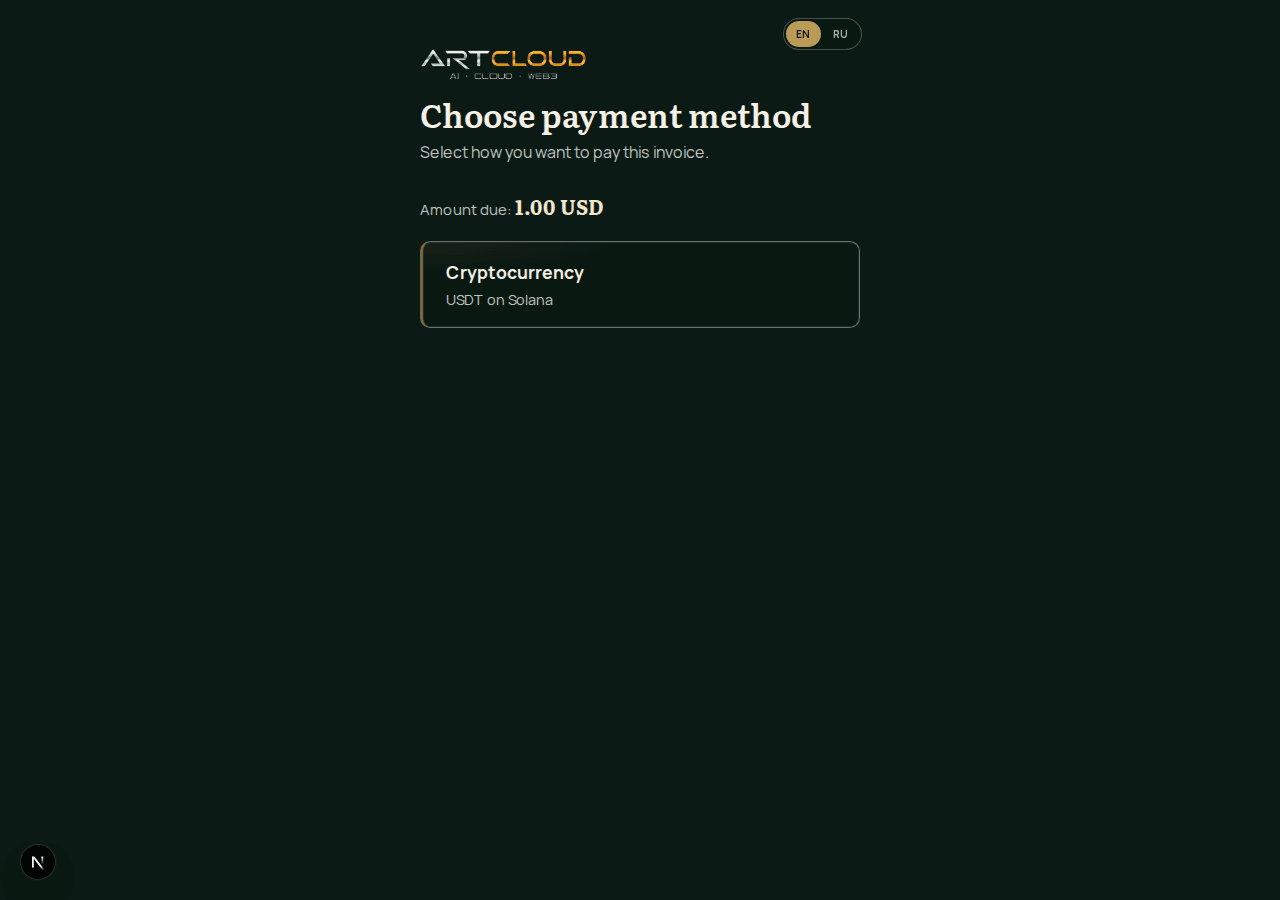
Redirect the buyer to checkout_url from the API response (or checkoutUrl in the modern format). The page shows the exact amount, QR code, and Solana address.
- Buyer sends the exact crypto amount to the shown address
- Status updates automatically as confirmations arrive
- When paid, your server receives a notification (see next section)
8. Server notifications and signature verification
When an invoice becomes paid, overpaid, or partially paid, ArtCloud Crypto Pay sends a POST request with JSON to your webhook URL (Settings) or per-invoice callback_url.
Headers: X-Artcloud-Signature (current) plus legacy X-Braiora-Signature / X-Shkeeper-Signature — all carry the same HMAC-SHA256 hex of the raw request body, keyed with your webhook secret.
{
  "id": "<engine id>",
  "invoice_id": "<invoice uuid>",
  "external_id": "order-1001",
  "status": "paid",
  "paid": true,
  "crypto": "SOLANA-USDT",
  "amount": "...",
  "fiat": "USD",
  "balance_fiat": 25,
  "wallet": "..."
}
Node.js example with idempotency (process each external_id + status once):
import crypto from "node:crypto";
import express from "express";

const app = express();
const processed = new Set(); // use DB in production

function verifySignature(secret, rawBody, signature) {
  if (!signature) return false;
  const expected = crypto
    .createHmac("sha256", secret)
    .update(rawBody)
    .digest("hex");
  const sig = Buffer.from(signature.trim(), "utf8");
  const exp = Buffer.from(expected, "utf8");
  // timingSafeEqual throws on length mismatch — check first
  if (sig.length !== exp.length) return false;
  return crypto.timingSafeEqual(exp, sig);
}

app.post(
  "/hooks/artcloud",
  express.raw({ type: "application/json" }),
  (req, res) => {
    const sig =
      req.header("X-Artcloud-Signature") ??
      req.header("X-Braiora-Signature") ??
      req.header("X-Shkeeper-Signature");
    if (!verifySignature(process.env.WEBHOOK_SECRET, req.body, sig)) {
      return res.status(401).send("invalid signature");
    }
    const event = JSON.parse(req.body.toString("utf8"));
    const key = `${event.external_id}:${event.status}`;
    if (processed.has(key)) return res.sendStatus(200);
    if (event.paid) {
      // fulfill order event.external_id
      processed.add(key);
    }
    res.sendStatus(200);
  },
);9. Invoice statuses in the dashboard
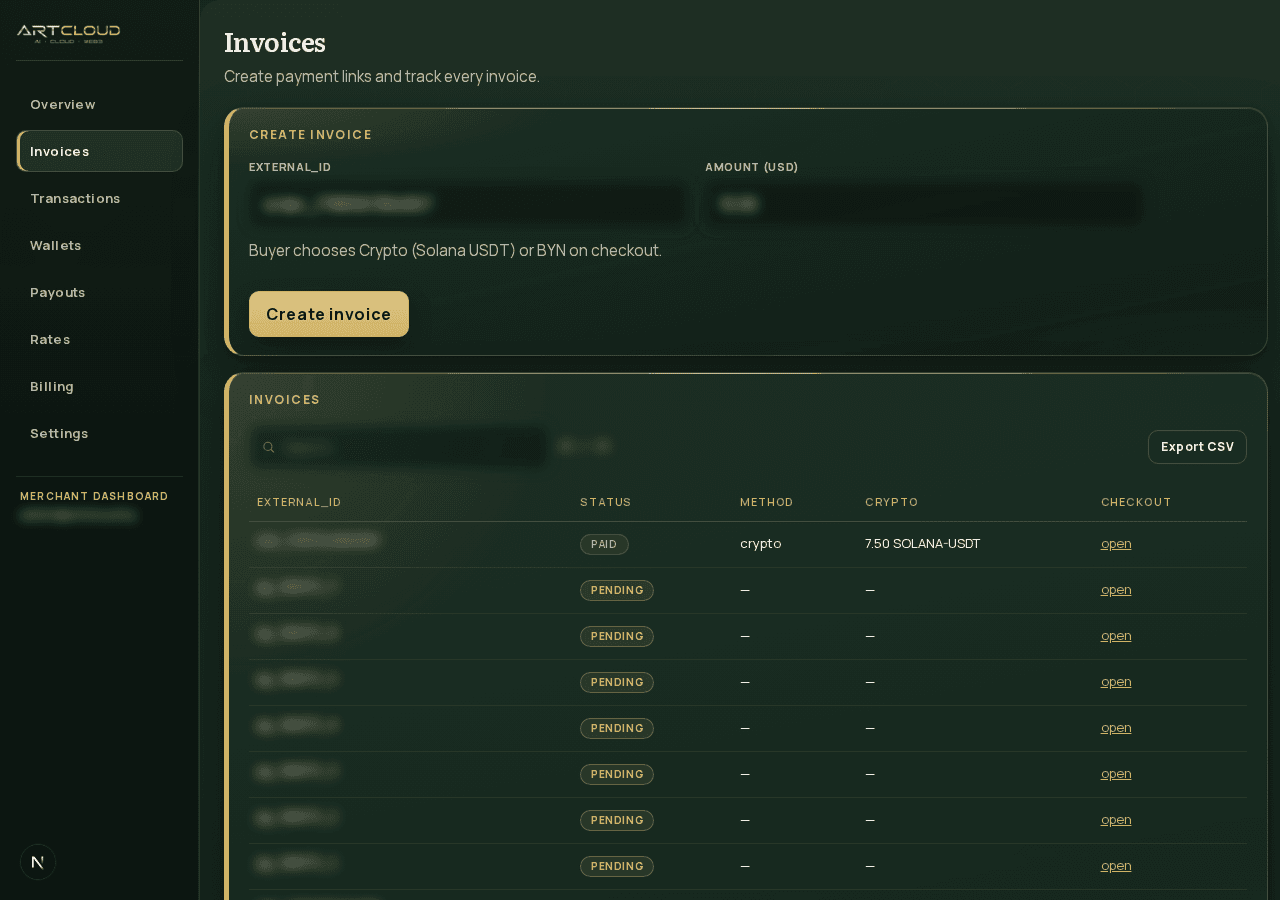
- Open / pending — waiting for payment
- Partial — received less than required (policy depends on your confirmation settings)
- Paid — full payment received; notification sent
- Overpaid — more than invoice amount (may be credited per policy)
- Failed / expired — invoice no longer accepts payment
Use Transactions for paid and partial payments; Invoices shows the full list including open ones.
10. Fee deposit (SOL for gas)
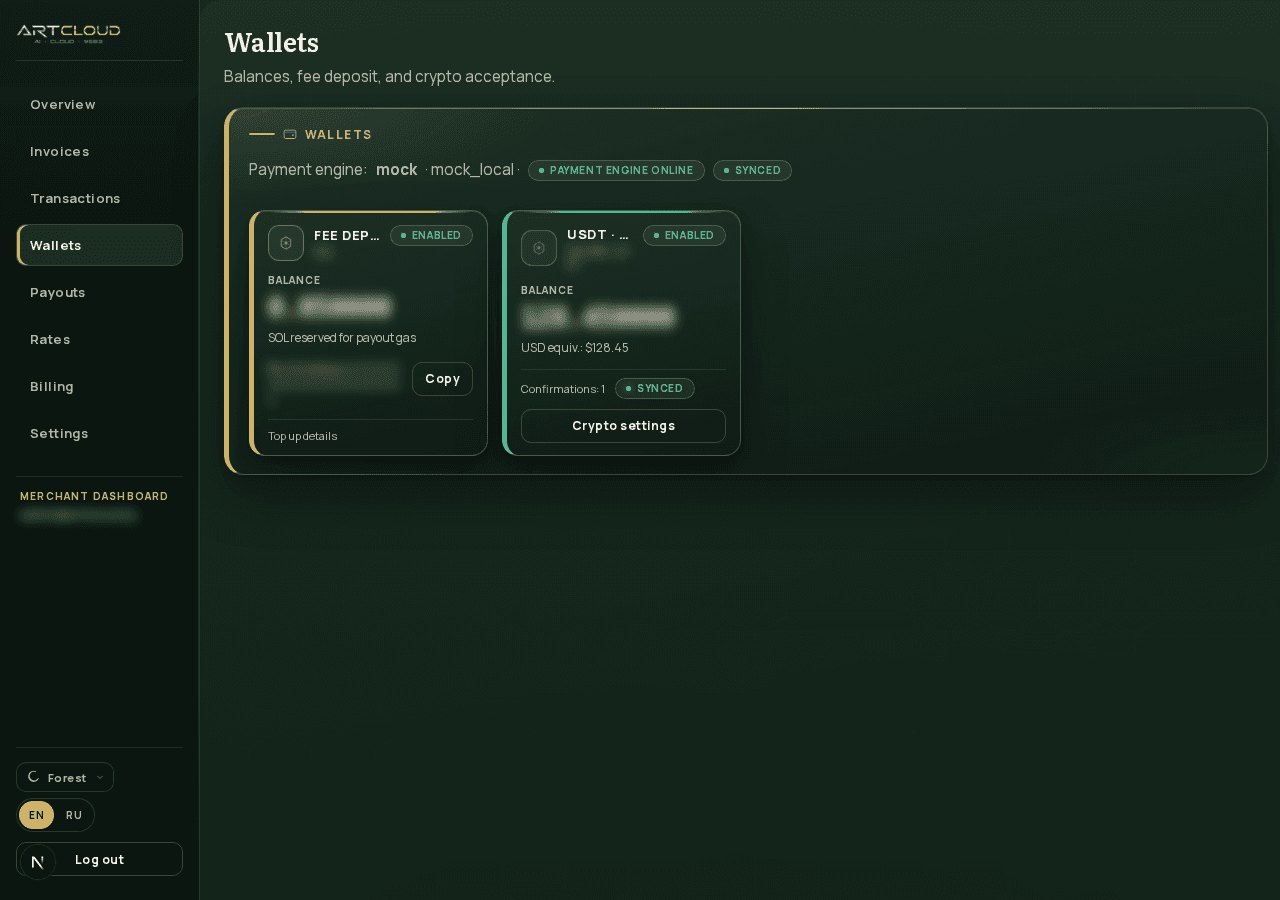
Solana network fees (gas) for sweeps and withdrawals are paid from a shared fee deposit wallet — not from your USDT/USDC balance. Top it up with SOL.
- Wallets tab → Fee deposit (SOL) card — full address, copy, QR in modal
- Overview shows a warning when balance is low (~0.01 SOL) or critical (~0.005 SOL)
- Without SOL on the fee deposit, withdrawals may fail even if token balance is sufficient
11. Withdrawals (manual payouts)
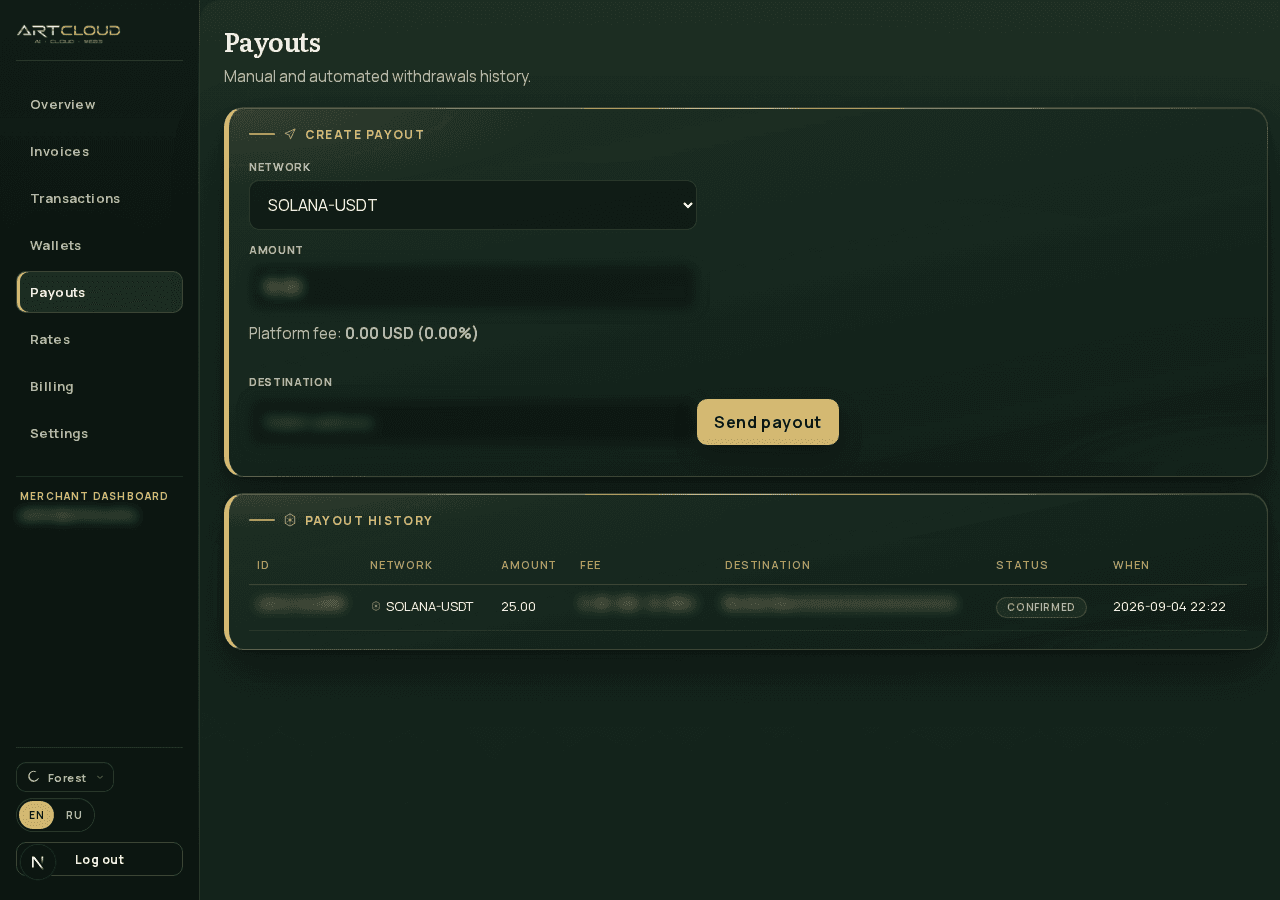
Open Payouts, choose asset (SOL / SOLANA-USDT / SOLANA-USDC), enter amount and destination address. The form shows platform fee preview. History lists status: pending, submitted, completed, failed.
Autopayout (automatic withdrawal when balance exceeds a threshold) can be configured in wallet policy settings. On staging it may execute automatically; treat it carefully — set destination and minimum only when you intend automatic drains.
12. Billing and plans
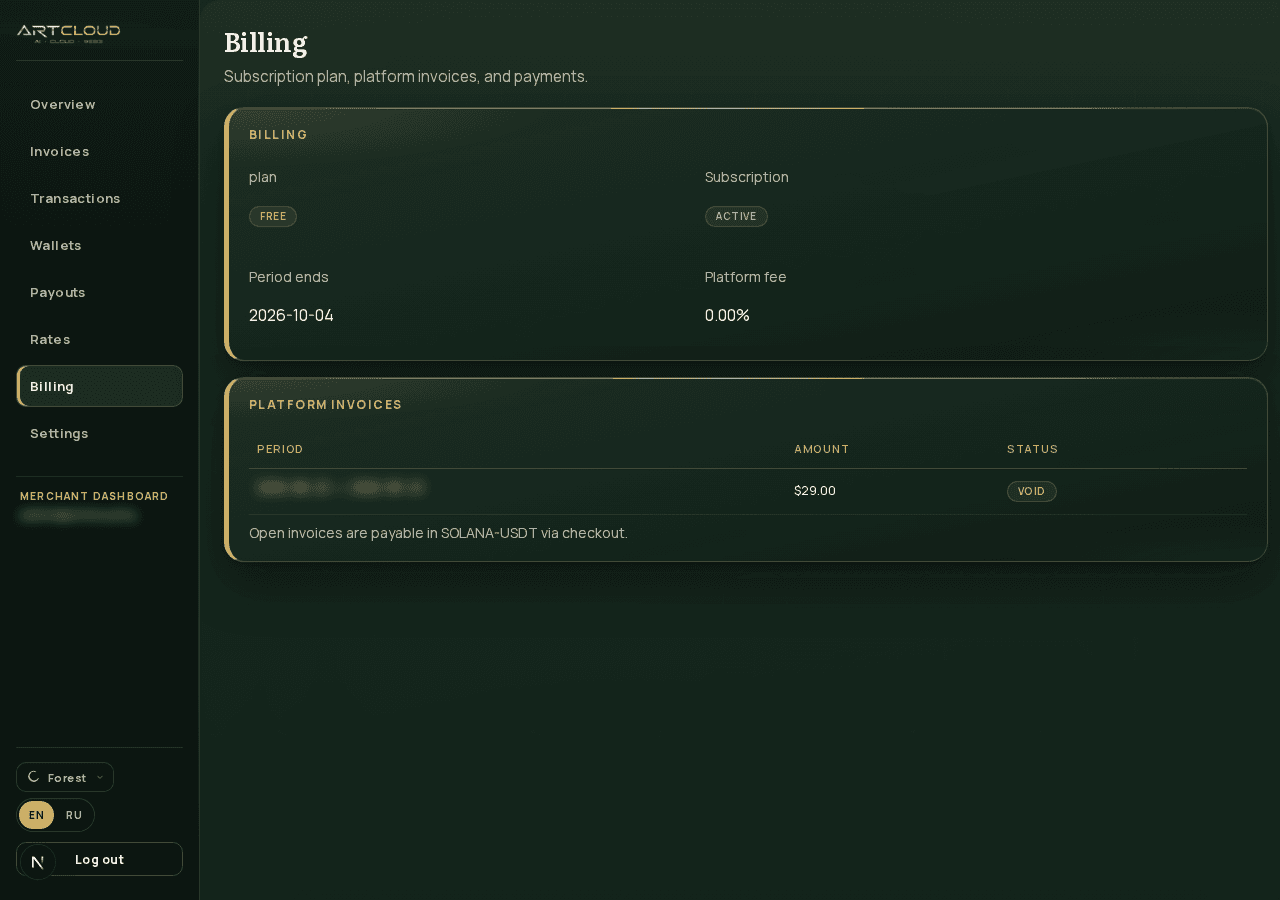
Self-serve registration starts on the free plan. Paid plans (starter, pro) may be offered via invite link. Billing tab shows current plan, subscription status, and platform invoices for SaaS fees.
Platform invoices are paid like any merchant invoice — via checkout in SOLANA-USDT. A suspended banner appears if subscription is past due beyond grace period.
13. API reference (OpenAPI)
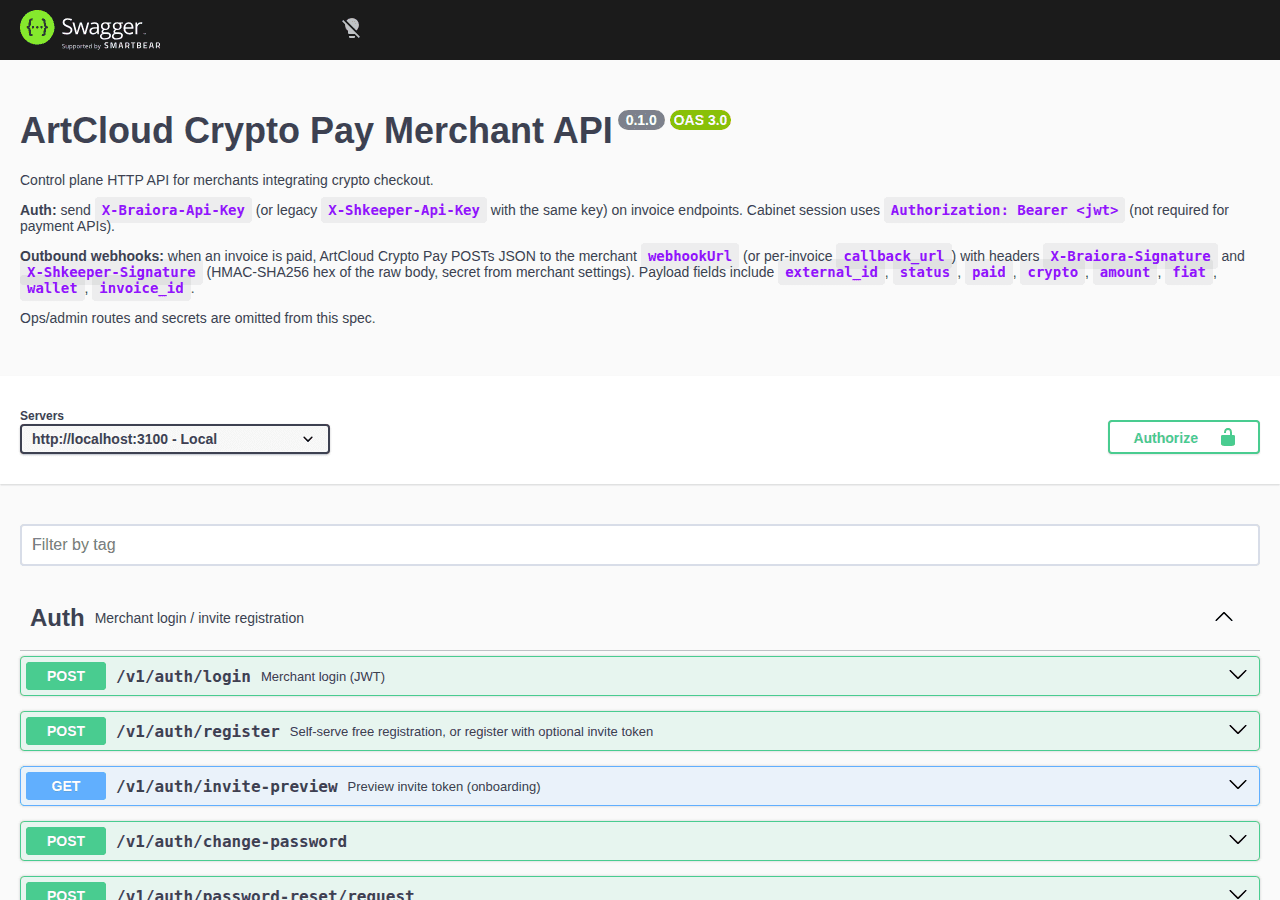
Full interactive reference with try-it-out: https://pay.braiora.com/api/docs
Key merchant routes: POST /v1/invoices, GET /v1/invoices/:id, POST /api/v1/{crypto}/payment_request. Cabinet routes use JWT after POST /v1/auth/login.
14. Troubleshooting
- 401 on API — check API key header and that the key was not rotated without updating your server
- No notification received — verify webhook URL in Settings, firewall allows POST from pay.braiora.com, handler returns 200
- Invalid signature — use raw body (not parsed JSON) for HMAC; compare X-Artcloud-Signature or legacy X-Braiora-Signature / X-Shkeeper-Signature
- Payment stuck pending — wait for Solana confirmations; check invoice policy (confirmations count) in Wallets → manage
- Withdrawal failed — top up fee deposit SOL; check destination address and minimum amount
- Balances show «updating» — engine sync in progress; refresh after a few minutes